> ## Documentation Index
> Fetch the complete documentation index at: /docs/llms.txt
> Use this file to discover all available pages before exploring further.
# Fimo Studio
> The visual dashboard where your team manages content, previews, collaboration, and publishing.
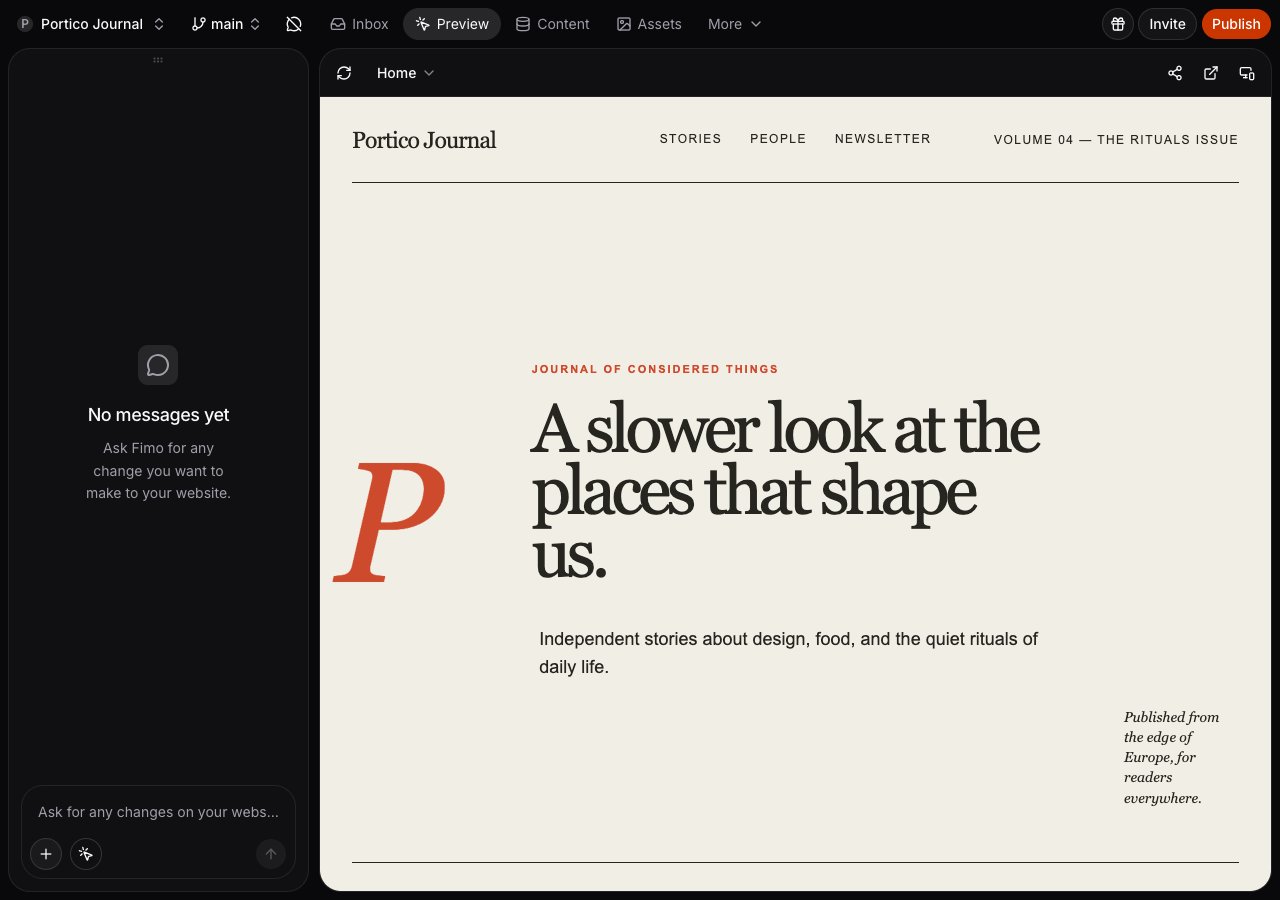
Fimo Studio is the web app where your team manages a site without editing application code. Your coding agent builds the
site, while Studio gives the rest of your team a place to edit content, review changes, and publish when ready.
## What you can do
> [card] [Edit visually](/docs/studio/visual-editing.md)
>
> Select CMS-managed text and images on the page to edit their content.
> [card] [Manage content](/docs/studio/cms.md)
>
> Add and edit entries such as blog posts, team members, and FAQs.
> [card] [Organize media](/docs/studio/media-library.md)
>
> Upload, generate, and organize the images and files your site uses.
> [card] [Ask the AI](/docs/studio/ai-chat.md)
>
> Describe a change in plain language and watch the AI make it.
> [card] [Publish](/docs/studio/publish.md)
>
> Publish reviewed changes when everything looks right.
> [card] [Restore a version](/docs/studio/version-history.md)
>
> Restore an earlier version if something goes wrong.
## Find actions quickly
Press ⌘ K on macOS or Ctrl K on Windows and Linux to open Studio's command palette. You can use it from anywhere in the app to:
* Move between organizations, sites, every Studio workspace, Preview pages, content types, agents, and settings pages.
* Search Collections, Singles, forms, schedules, webhooks, and apps by name.
* Search asset folders instead of navigating through sidebars.
* Find any chat in a site by its name or last message, archived chats included, and open it.
* Run actions for the page you're viewing, such as editing or previewing the current page, running or pausing a schedule, testing a webhook, inviting a member, or buying a domain.
* Open site history, invitations, publishing, documentation, and feedback.
Inside a site, the **All**, **Chats**, and **Commands** tabs narrow the results; press Tab to move between them.
The palette follows the same permissions and feature availability as the rest of Studio. Actions such as publishing still open their normal review or confirmation flow.
## Share the page you're previewing
The Studio address follows the page open in Preview. Refreshing, coming back to Preview from another workspace, or sending the link to a site member opens the same page on the same Branch.
## Organize previews with Environments
Open **Settings** → **Advanced settings** → **Environments** to see how Branches map to deployment contexts. Production is live. Everything else is a preview.
Environments are named places where your site runs, and Branches are matched to them. **Production** is the deployed snapshot visitors see and updates from the site's configured source when you publish. **Preview** contains every Branch not assigned to another Environment.
On Pro plans, site managers can create custom Environments using exact Branch names and one optional trailing pattern such as `release/*`. Unassigned Branches always fall back to Preview. See [Branches](/docs/environments/overview.md) for the Branch workflow.
## Repair a blocked Preview
Some package managers block dependency install scripts until the site trusts
each package. When this stops Preview, Studio shows the exact blocked packages.
Site managers can approve that list and restart Preview in one action. Fimo
updates the package manager's site policy, records the change in site
history, installs again, and returns to the regular Preview loader until the
site is ready.
Approving requires site management access. Without it the action stays in
view, disabled, and says what access is missing, so everyone can still see what
Preview is waiting on.
**Fix with Fimo** stays available as an alternative for teammates who can use
Studio chat. It asks the agent to review each blocked package, approve only the
ones that clearly belong to this site and come from a source you trust, and
never use a blanket approval. If a package is unexpected, ambiguous, or
suspicious, the agent stops, explains the concern, and asks whether you want to
remove it, replace it, or approve it explicitly.
Fimo approves only the packages shown. If the site changed after Studio
reported them, the approval is replaced by **Refresh Preview**, which loads the
current list so you review what actually blocks the install now. Package
managers without a package-level approval policy keep the manual repair option.
## When your app does not start
If your site's own `dev` command exits while starting (for example, because a
package it runs is missing from `package.json`), Preview says so instead of
showing an older page. Use **Copy details** to copy the error output for your
own investigation or to share it with a developer.
Fimo does not reinstall dependencies over and over: reinstalling cannot add a
package your site never declared. Fix the project instead:
* **Fix with Fimo** sends the output to Studio chat. The agent works in its own
session, where it can read and change the files even though the app does not
start, and the fix reaches your Branch when the session merges.
* Fix it yourself from the CLI or your editor and deploy.
Preview starts again on its own when the fixed revision reaches the Branch.
**Retry preview** asks once more at any time.
## One site, two surfaces
Studio and the `fimo` CLI work on the **same site**. Developers and agents work through the command line; everyone else
works in Studio. A change made in one shows up in the other, so the whole team stays in sync.
> [!NOTE]
>
> Edits you make in Studio save automatically as you work, like a draft. Visitors only see them once you
> [publish](/docs/studio/publish.md).
## Agents and branches
The agents workspace and [Branches](/docs/environments/overview.md) are part of Studio for everyone, with nothing to enable. What you see follows your site role: every member can open Agents and switch Branches, while creating, merging, and deleting a Branch stays with site managers.
## What's next
> [card] [Visual editing](/docs/studio/visual-editing.md)
>
> Make quick tweaks by clicking on the page.
> [card] [AI chat](/docs/studio/ai-chat.md)
>
> The fastest way to make bigger changes.
> [card] [Sharing and collaboration](/docs/studio/collaboration.md)
>
> Invite your team and work together in real time.
This documentation is built and hosted on [Mintlify](https://mintlify.com), a developer documentation platform.